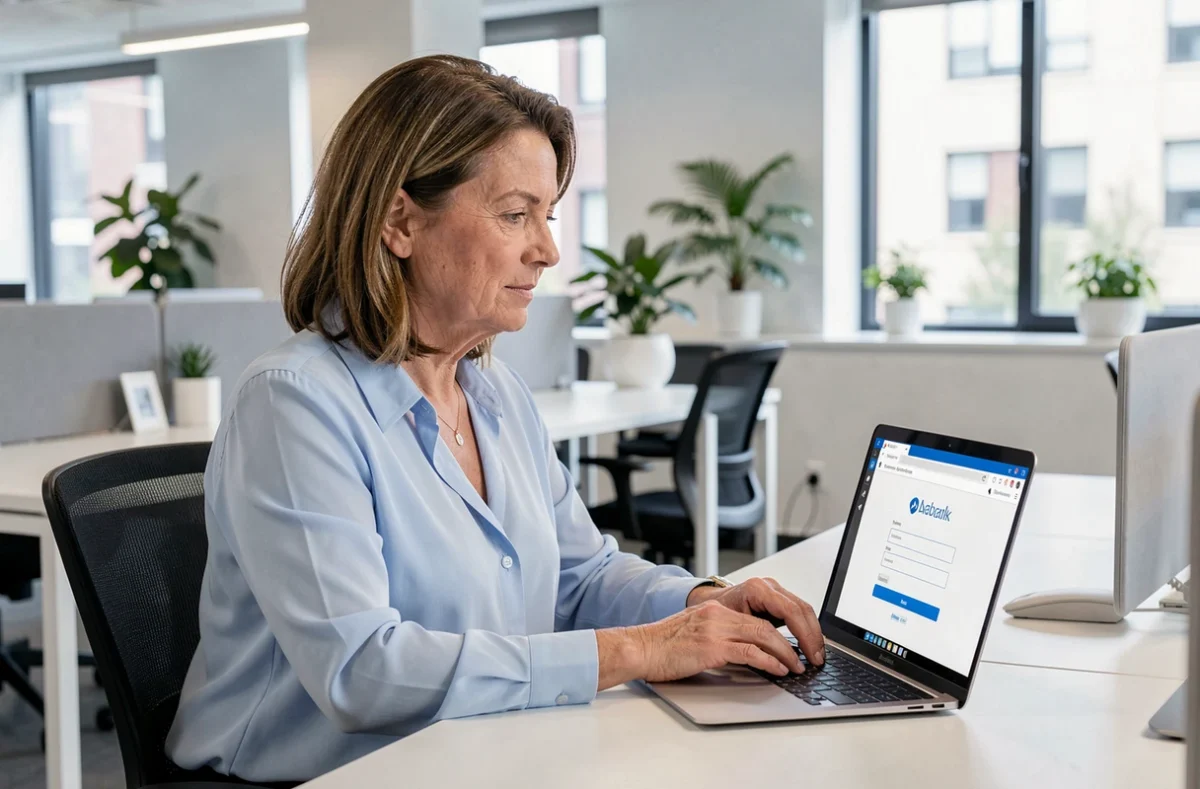
Zimbra 66 refers to the webmail interface deployed by the Pyrénées-Orientales Department Council (CD66) for its agents. Accessible from the address zwa.cg66.fr, this professional messaging system is based on the Zimbra client and offers three distinct display modes: Modern, Classic, and Default. Understanding these modes and the security rules related to connection helps avoid most of the daily issues encountered.
Zimbra Interface Modes of CD66: Modern, Classic, and Default
The login page of zwa.cg66.fr displays a choice of version after entering credentials. This choice determines the ergonomics, available functions, and browser compatibility.
The Modern mode offers a responsive interface that adapts to screens of all sizes, including tablets. It integrates connectors to third-party applications, but not all advanced calendar functions are present.
The Classic mode is aimed at users who have been accustomed to Zimbra for a long time. It provides access to all collaborative functions and advanced calendar options but is optimized for a desktop browser.
The Default mode applies the setting saved in the account preferences. In Modern, this setting can be found in Settings > General > Zimbra Version. In Classic, it is adjusted in Preferences > General > Sign In. If no setting has been saved, the system switches to the default mode set by the CD66 administrator.
A detailed guide allows you to connect to Zimbra 66 of CD66 by following each step from entering the username to choosing the interface mode suitable for your workstation.
Security of Zimbra Connection on Shared Workstations
The CD66 authentication page offers a “Stay signed in” checkbox. When checked, it keeps the session open even after closing the browser. On a personal workstation protected by a password, this option saves time.
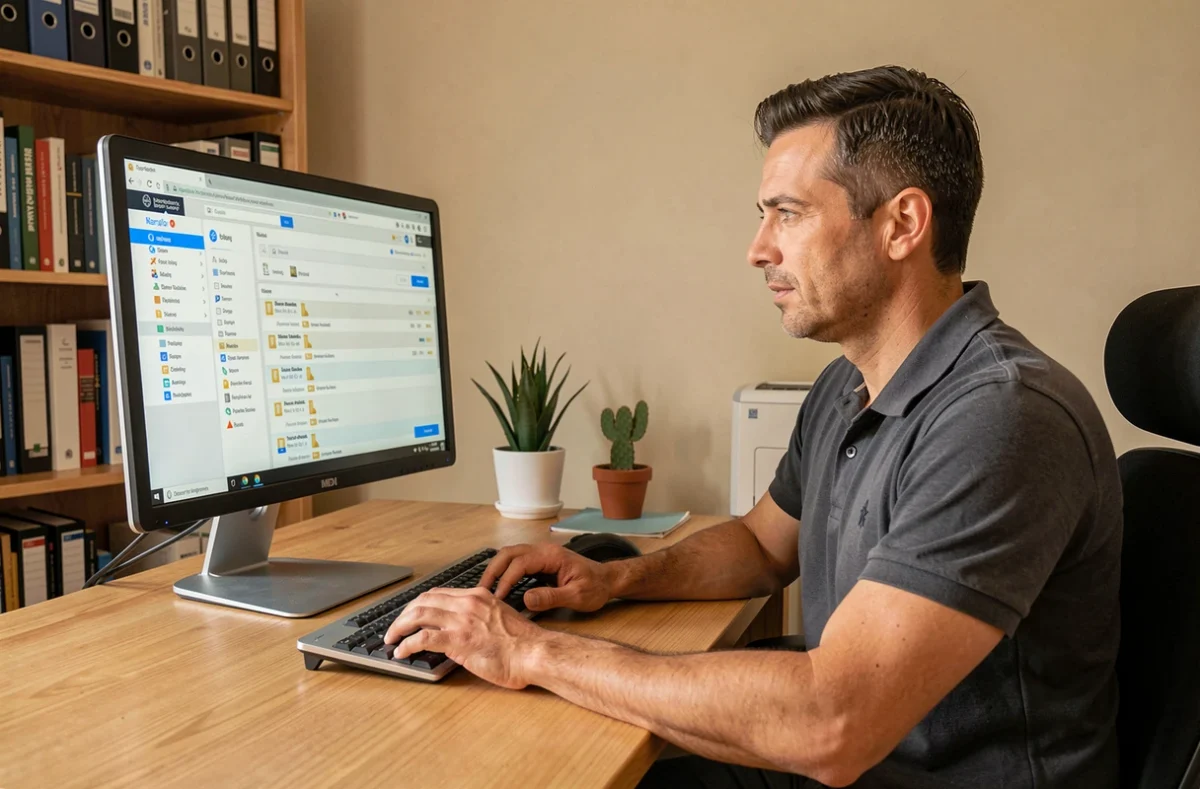
On a shared computer (meeting room, reception desk, device used for teleworking by multiple household members), the “Stay signed in” checkbox should remain unchecked. Keeping it active exposes the professional email to anyone who opens the browser after you.
Disconnection Reflexes to Adopt
- Click on “Sign Out” in the account menu before leaving the workstation, rather than just closing the tab
- Clear the browser’s cache and cookies if the session was opened on an uncontrolled device
- Check that no browser password manager has automatically saved the CD66 credentials on a shared workstation
These precautions are common sense, but they remain the primary cause of reports to IT services regarding corporate messaging.
Configuring an External Email Client with Zimbra CD66
General Zimbra guides often describe IMAP or SMTP settings to link the inbox to Outlook, Thunderbird, or Apple Mail. No public source confirms the ports and servers authorized by CD66.
Before any attempt at external configuration, you must contact the IT support of the Department Council. Institutional Zimbra environments frequently restrict IMAP access for security reasons, and incorrect configuration can temporarily lock the account.
What IT Support Can Specify
- The exact address of the incoming server (IMAP or POP) and the outgoing server (SMTP) of CD66
- The authorized ports and the type of encryption required (SSL/TLS)
- The accepted authentication method (standard password, two-factor authentication, application token)
- Any restrictions related to VPN or internal network
Configuring an external client without these validated details is akin to guesswork, with a risk of account blockage after several authentication failures.

Useful Zimbra Functions for Daily Work at CD66
Once connected, a few settings improve email flow management without requiring technical skills.
Switching Between Conversation View and Mail View
By default, Zimbra groups exchanges by thread (Conversation view). This grouping makes it easier to follow a case but may hide an isolated message received in an old thread. The Mail view displays each email individually, in chronological order. The switch can be made from the inbox preferences.
Sharing a Calendar with Colleagues
The Zimbra calendar allows sharing a calendar with other CD66 agents. In Classic mode, a right-click on the calendar name opens the sharing option. The recipient receives an invitation and can overlay this calendar with theirs. This function avoids back-and-forth emails to schedule a meeting.
Enabling Spell Check Before Sending
Zimbra includes a configurable spell checker in the composition preferences. Enabling mandatory spell check before sending reduces errors in emails sent to users or institutional partners. The setting can be found in Preferences > Composition.
The Zimbra webmail of CD66 remains a stable tool as long as the connection rules specific to the departmental environment are respected. The choice of interface mode, diligence in disconnection, and validation of settings with IT support cover most of the difficulties encountered by agents.